1 About the tool
M365 License Advice is a free website that helps you choose the right Microsoft 365 licence for your organisation. You answer a few plain-English questions about your organisation and how it works. The site then recommends a plan, explains why, estimates the cost and links to a detailed map of everything in that licence.
The site has four main areas, reached from the top bar:
| Area | What it's for |
|---|---|
| Get advice | A six-step questionnaire that gives you a personal recommendation, a cost estimate and, where it matters, a side-by-side cost comparison of E3 + add-ons, E5 and E7. |
| Check my licences | Enter what you already pay for to find duplicates, unused seats, cheaper bundles and billing savings. |
| Compare plans | A side-by-side table of what each main plan includes, plus frontline, apps-only, education and government plans. |
| Understand it | A searchable glossary that explains Microsoft 365 jargon (Intune, DLP, Conditional Access, Copilot and more). |
Who it's for: business owners, office and operations managers, IT staff, school and charity administrators, and IT partners who want a quick, explainable starting point before talking to a reseller.
2 Getting started
Open the site in any modern browser (Edge, Chrome, Safari or Firefox) on a computer, tablet or phone. Nothing needs to be installed and you don't need an account.

- Click Get advice (this is the page you land on).
- Answer Where will you be billed? in step 1. This sets £ or $ for your results (see section 3).
- Work through the six steps, clicking Next after each one. You can click Back at any time to change an answer.
- On the last step, click Get my recommendation.
It takes about two minutes. Have rough numbers ready: how many people need a licence and how many of them are frontline staff.
3 Choosing £ or $
Prices can be shown in £ GBP (Microsoft UK list prices, excluding VAT) or $ USD (Microsoft US list prices). There are two ways to choose, and they always stay in step:
- Where will you be billed? in step 1 of the questionnaire. Choose United Kingdom for £ or United States for $. This is the best way to make sure each person gets prices in the right currency.
- The £ GBP / $ USD switch at the top right of every page.
- The first time someone visits, the site picks $ if their browser is set to US English and £ otherwise. After that it remembers their last choice on that browser.
- You can switch at any time, even after you've got your results. Costs update immediately, and the recommendation itself never changes with currency, because the choice between plans is always worked out on Microsoft's complete US price list.
- UK prices exclude VAT. Both currencies are per user per month on an annual commitment. Paying monthly usually costs about 20% more.
- A few plans don't have a published price in one currency. These show as "Ask reseller" rather than a guessed figure.
4 Answering the questions
The questionnaire has six steps. The progress bar at the top shows where you are. Each answer is a card you click to select. Where you're unsure, pick the option closest to how you work today.
Step 1: Organisation
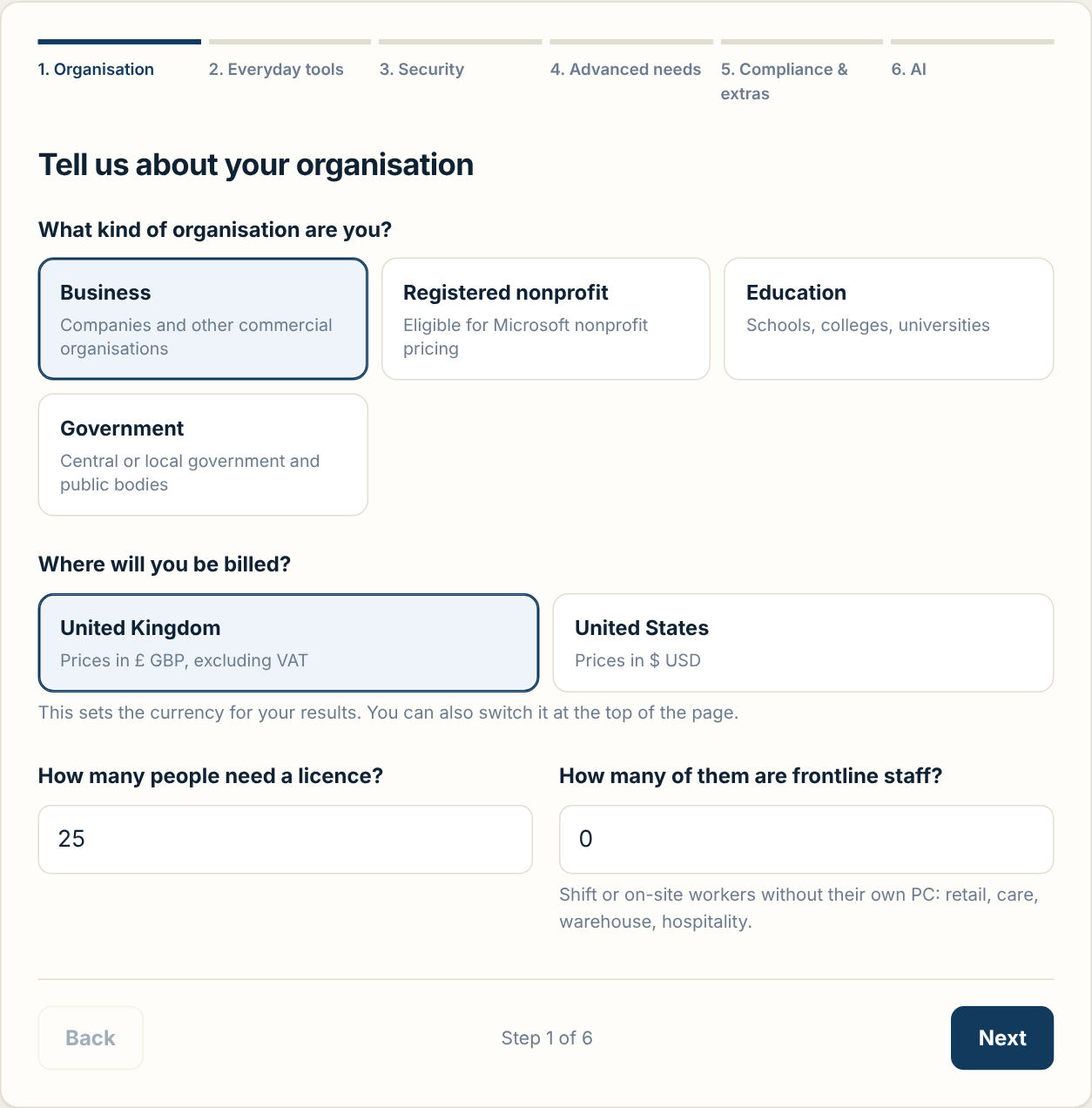
- What kind of organisation are you?
-
- Business: companies and other commercial organisations.
- Registered nonprofit: charities and nonprofits approved by Microsoft's nonprofit programme. This uses discounted nonprofit prices. You must apply to Microsoft to get them.
- Education: schools, colleges and universities. This recommends the education plans (A1, A3, A5).
- Government: central or local government and public bodies. This recommends the standard plans that UK and most public sector bodies buy, and names the US Government Community Cloud (GCC) equivalent in case you are a US government body.
- Where will you be billed?
- United Kingdom shows prices in £ (excluding VAT); United States shows $. This is the same setting as the switch at the top of the page.
- How many people need a licence?
- Everyone who needs to sign in: staff, contractors and anyone who needs a mailbox of their own. Shared mailboxes (like info@) and meeting-room accounts usually don't need a paid licence.
- How many of them are frontline staff?
- People who work shifts or on site and don't have their own computer, such as shop floor, care, warehouse, hospitality or field staff. Enter 0 if none. This number matters because frontline plans are much cheaper.

- What do your frontline staff need?
- Teams, rotas and reading info leads to the F1 plan (chat, shifts, view documents, no mailbox). Email and editing too leads to F3 (a small mailbox and editing in web and mobile Office apps).
Step 2: Everyday tools
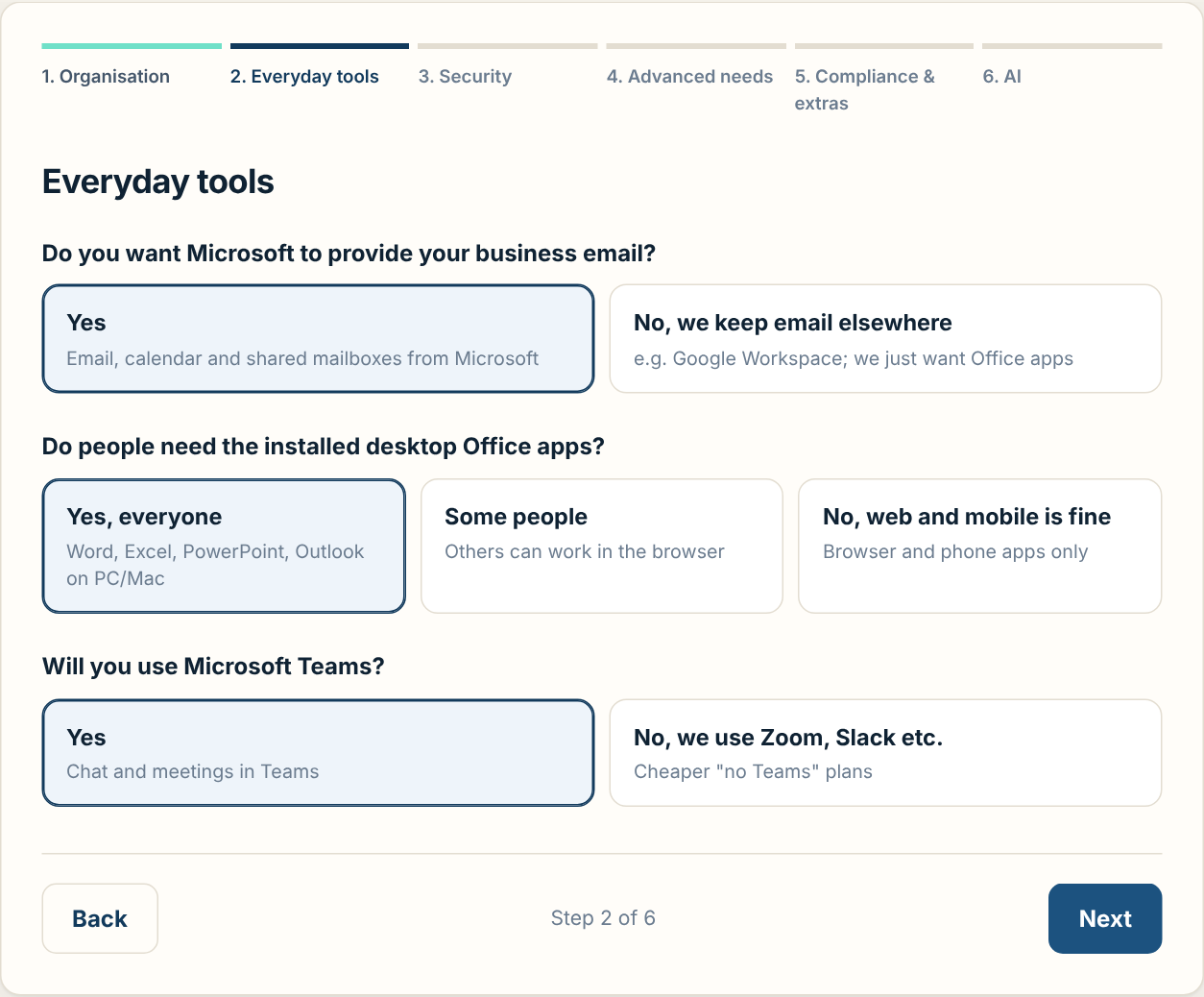
- Do you want Microsoft to provide your business email?
- Choose No only if you'll keep email somewhere else (for example Google Workspace) and just want the Office apps. This leads to the "Apps for business" or "Apps for enterprise" plans.
- Do people need the installed desktop Office apps?
- Desktop apps are the full Word, Excel, PowerPoint and Outlook installed on PCs and Macs. If people are happy working in the browser and on phones, choose No to save money. Some people is treated as "yes", and the results suggest mixing plans.
- Will you use Microsoft Teams?
- If you use Zoom, Slack or similar instead, choose No. The site then uses Microsoft's cheaper "no Teams" prices where they exist.
Step 3: Security and devices
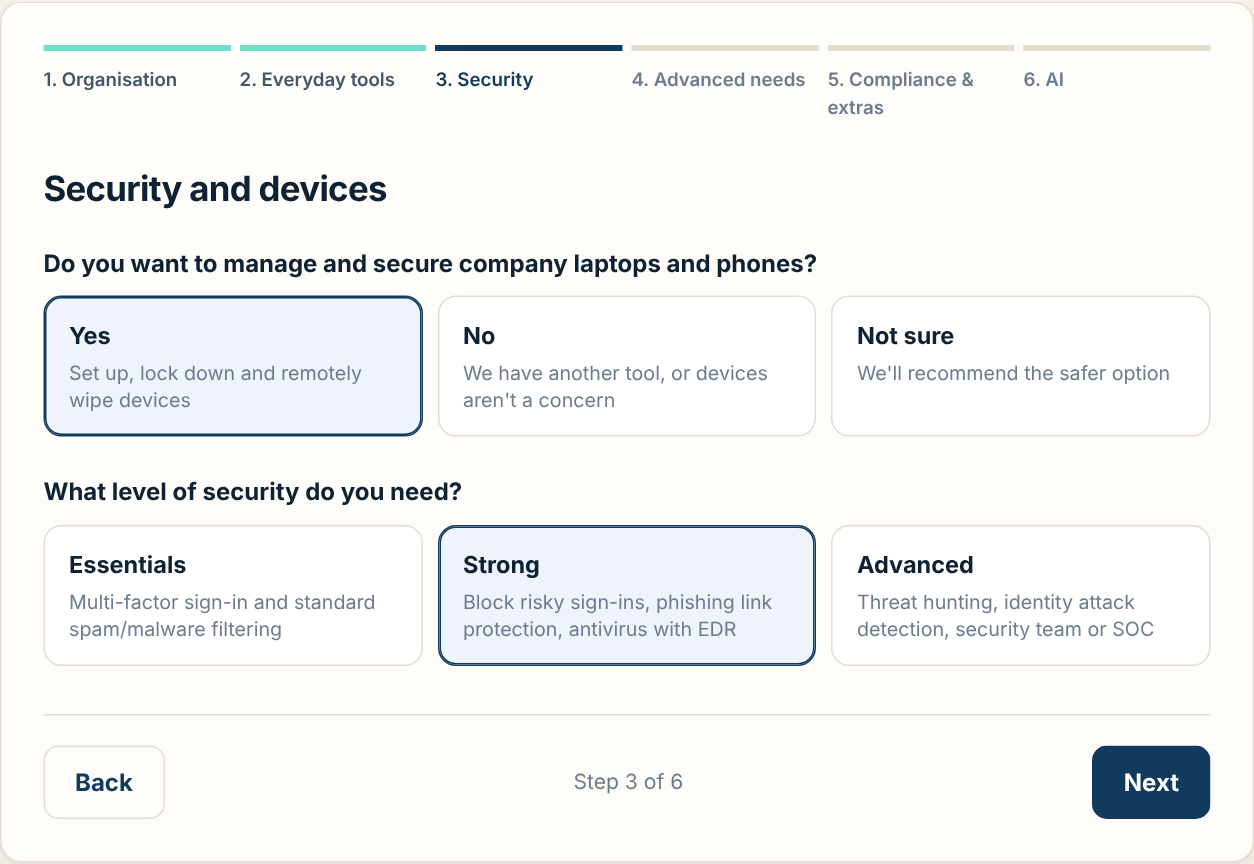
- Do you want to manage and secure company laptops and phones?
- Device management lets IT set up laptops and phones, enforce passwords and encryption, and wipe a lost device remotely. If you're Not sure, the site recommends the safer option, because lost or stolen devices are a common risk.
- What level of security do you need?
-
- Essentials: multi-factor sign-in and standard spam and malware filtering.
- Strong: blocking risky sign-ins (Conditional Access), phishing link protection and antivirus with EDR. This is the right level for most organisations.
- Advanced: threat hunting and detecting attacks on accounts. Usually for organisations with a security team, a managed SOC or a high-risk profile.
Step 4: Advanced security and identity
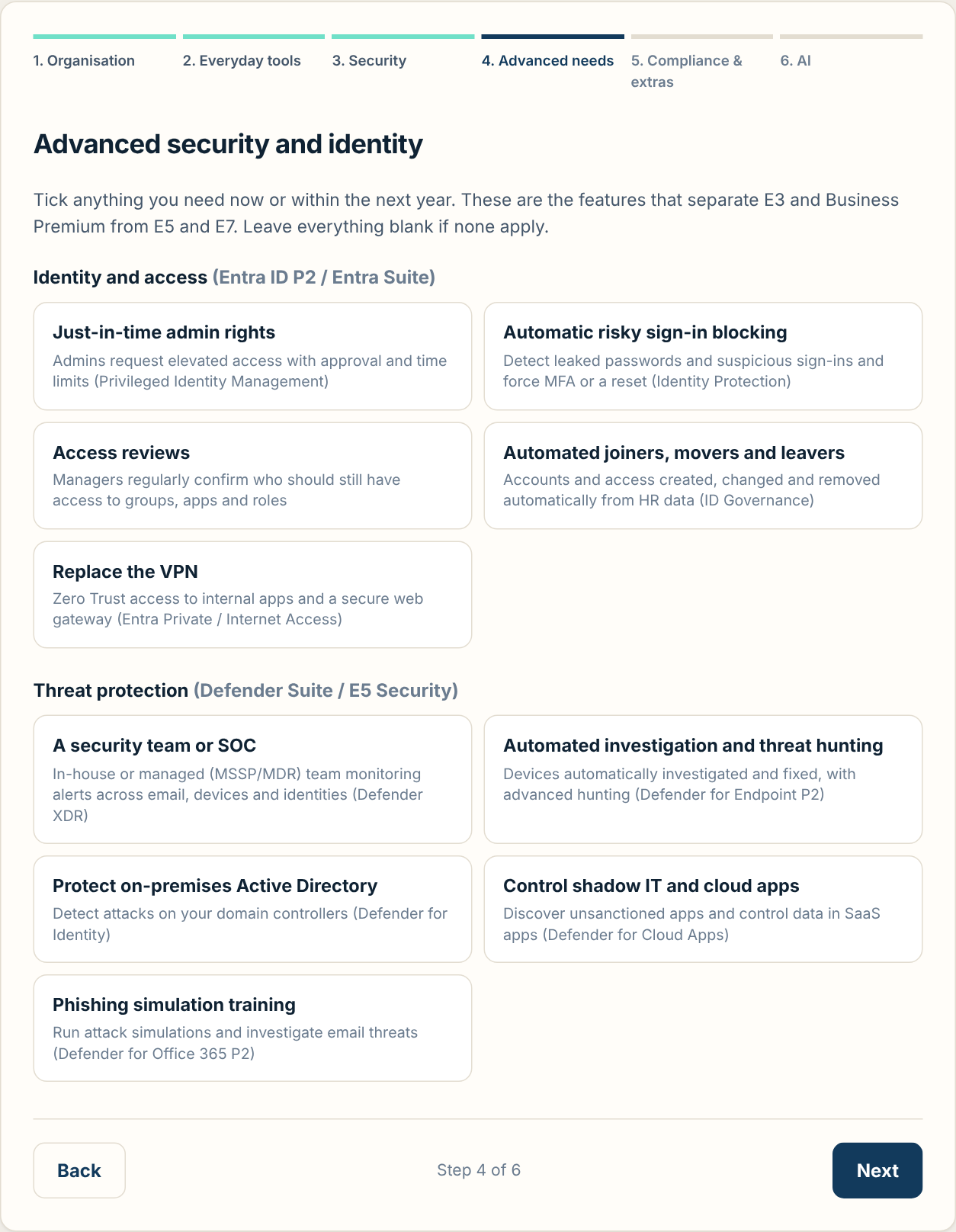
This step works out whether you need E5-level features, or add-ons such as Entra ID P2, the Entra Suite or the Defender Suite. Tick anything you need now or within the next year. Leave it all blank if none apply.
| If you tick… | You need… | Where it comes from |
|---|---|---|
| Just-in-time admin rights | Privileged Identity Management | Entra ID P2 (in E5, E7, Defender Suite) |
| Automatic risky sign-in blocking | Identity Protection | Entra ID P2 |
| Access reviews | Access reviews | Entra ID P2 |
| Automated joiners, movers and leavers | Entra ID Governance | Entra Suite (in E7) |
| Replace the VPN | Entra Private / Internet Access | Entra Suite (in E7) |
| A security team or SOC | Defender XDR across everything | Defender Suite (in E5, E7) |
| Automated investigation and threat hunting | Defender for Endpoint P2 | Defender Suite |
| Protect on-premises Active Directory | Defender for Identity | Defender Suite |
| Control shadow IT and cloud apps | Defender for Cloud Apps | Defender Suite |
| Phishing simulation training | Defender for Office 365 P2 | Defender Suite |
Choosing Advanced security in step 3 counts as needing the Defender Suite even if you don't tick anything here.
Step 5: Compliance and extras
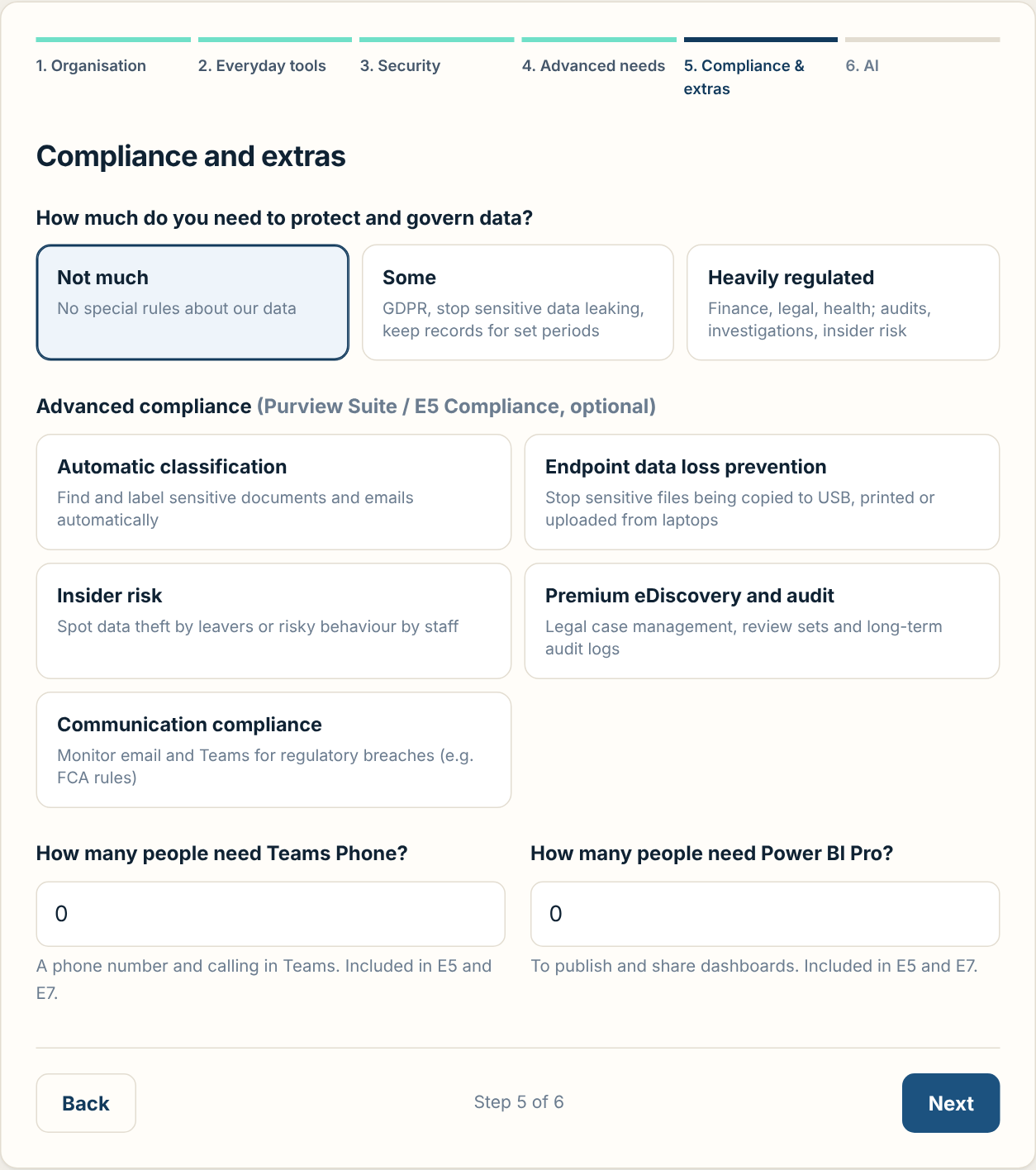
- How much do you need to protect and govern data?
-
- Not much: no special rules about your data.
- Some: GDPR obligations, stopping sensitive data leaking by email, keeping records for set periods.
- Heavily regulated: finance, legal or health. This counts as needing the Purview Suite (E5 compliance).
- Advanced compliance (optional)
- Ticking any of automatic classification, endpoint data loss prevention, insider risk, premium eDiscovery and audit or communication compliance means you need the Purview Suite (formerly E5 Compliance), which is also included in E5 and E7.
- How many people need Teams Phone / Power BI Pro?
- Enter the number of people, not just yes or no, so the cost is accurate. Both are included in E5 and E7 and are add-ons for other plans. Teams Phone also needs a calling plan or Operator Connect.
Step 6: AI with Copilot
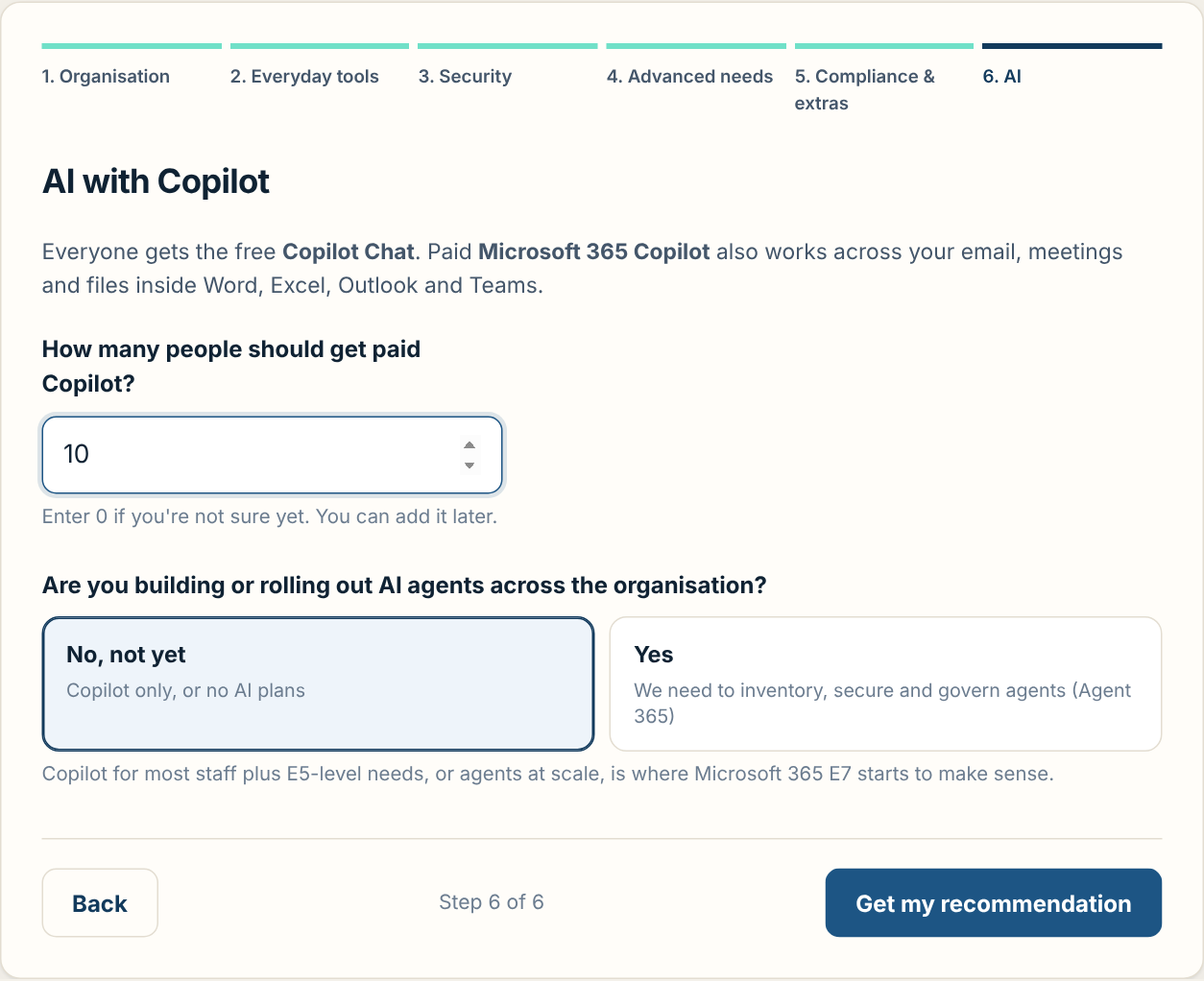
- How many people should get paid Copilot?
- Everyone already gets the free Copilot Chat. Paid Microsoft 365 Copilot also works across your emails, meetings and files inside the Office apps. Enter the number of people who would use it daily, or 0 if you're not sure.
- Are you building or rolling out AI agents?
- Choose Yes if you need to inventory, secure and govern AI agents (Agent 365). Together with Copilot users and E5-level needs, this is what makes Microsoft 365 E7 worth considering.
Click Get my recommendation to see your results.
5 Reading your results

The heading shows your recommended plan, plus a frontline plan if you have frontline staff, and how your users split between office-based and frontline.
Plan cards
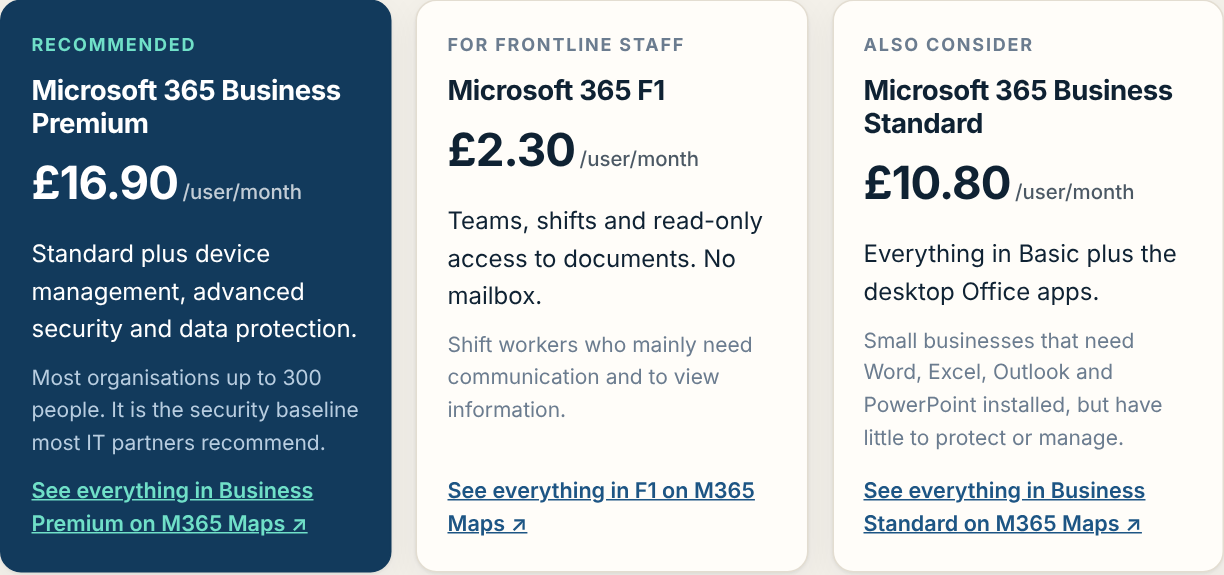
- Recommended (dark card): the best fit for your office-based staff, with its price per user per month.
- For frontline staff: shown only if you entered frontline staff.
- Also consider: the closest alternative. This is usually one tier up (more features) or down (cheaper), so you can weigh the trade-off.
Each card has a link to see everything in that plan on M365 Maps (see section 9).
Why this plan, add-ons and good to know
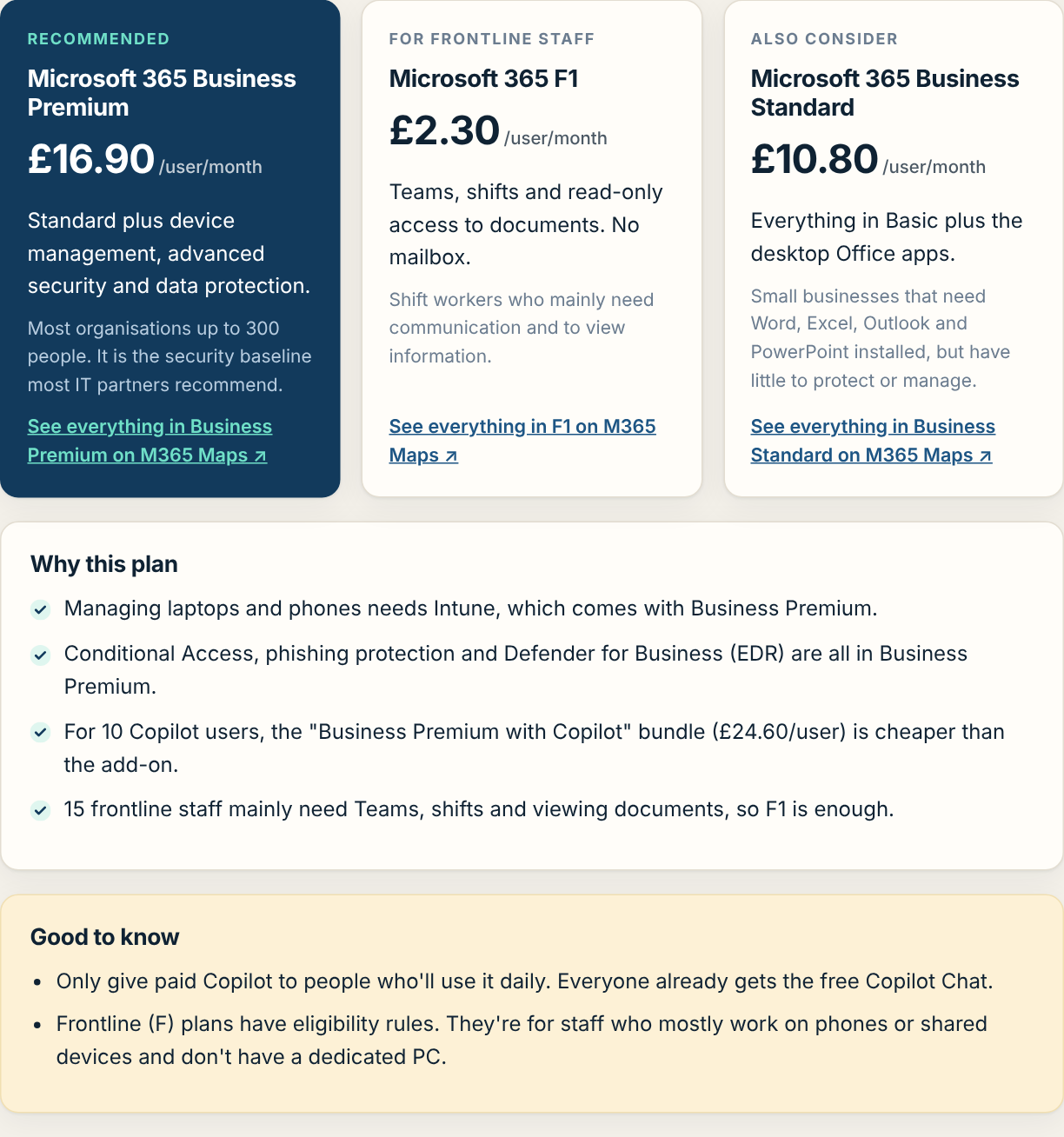
- Why this plan links each part of the recommendation back to your answers. Use it to explain the choice to colleagues or a finance team.
- Add-ons included lists each add-on in the recommended route, what it gives you and its price per user per month. These are included in the cost estimate.
- Good to know (yellow box) covers rules and caveats, such as frontline eligibility, the 300-user Business cap, nonprofit approval or the government note.
E3 vs E5 vs E7: what each route costs
If you ticked any advanced needs in steps 4 to 6 (or have more than 300 users and want Copilot), the results include a cost comparison of the realistic ways to get everything you asked for:
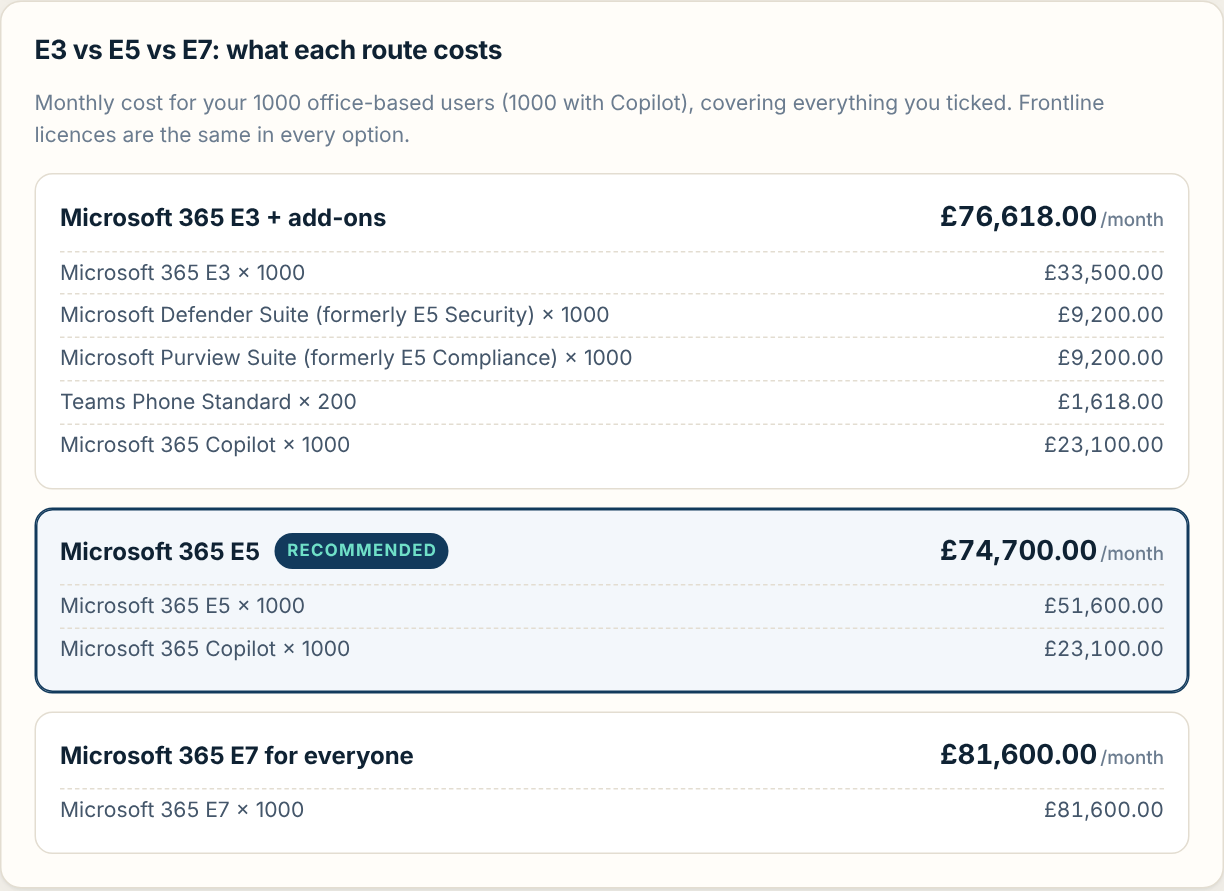
- Base plan + add-ons: Business Premium (up to 300 users) or Microsoft 365 E3, plus only the add-ons you need: Entra ID P2, Defender Suite, Purview Suite, Entra Suite, Teams Phone, Power BI Pro, Copilot and Agent 365.
- Microsoft 365 E5: everyone on E5, plus Entra Suite, Copilot or Agent 365 only if you need them.
- Microsoft 365 E7: E7 for your Copilot users, and the cheaper of the other two routes for everyone else. This option appears when you have Copilot users or AI agents.
The cheapest route is marked Recommended. If E5 or E7 costs within about 5% of buying add-ons separately, the all-in plan is recommended instead because it includes more for nearly the same price. Each line shows the price for that many users in your chosen currency.
Cost estimate, M365 Maps and actions
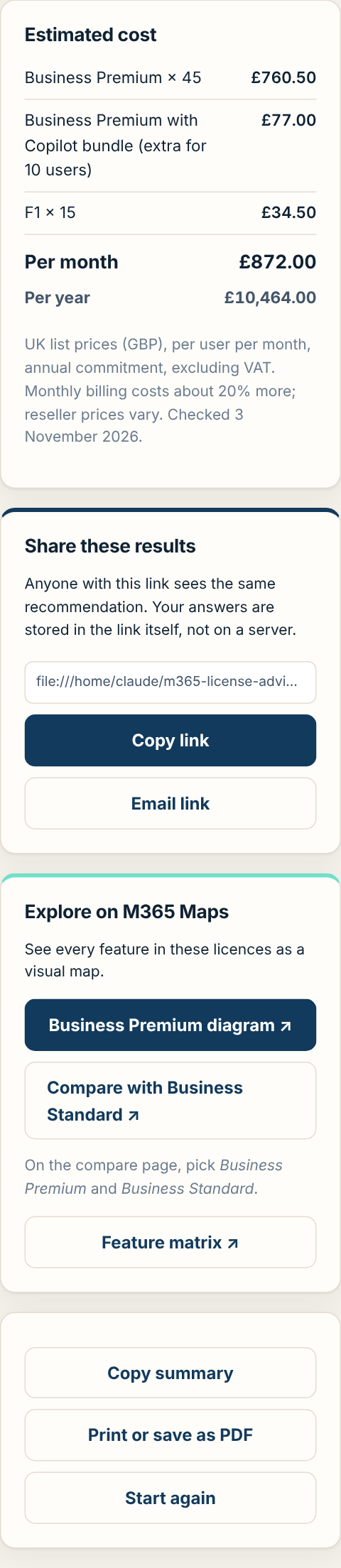
- Estimated cost shows a line for each plan and add-on × number of users, and totals per month and per year. Prices are list prices before any reseller discount. If an item has no published price in your currency, it says so in a yellow note and gives the total of the items that are priced.
- Explore on M365 Maps opens the recommended plan's diagram, the comparison page and the feature matrix.
- Share these results gives you a link that reopens this exact recommendation, with all answers and the currency, on any device. Click Copy link to paste it into an email or Teams chat, Email link to open a new email with it, or Share… on phones and tablets. The address bar also updates, so bookmarking the page saves your results too.
- Copy summary copies a plain-text summary (plans, reasons, add-ons and cost) to paste into an email or Teams message.
- Print or save as PDF opens your browser's print window. Choose "Save as PDF" as the printer to keep a copy. Navigation and buttons are left out of the printout.
- Start again returns to step 1 with your previous answers kept, so you can change one thing and compare.
6 Check my licences
Already paying for Microsoft 365? Check my licences in the top bar looks at what you pay for now. It finds money you may be wasting and shows an estimated saving for each finding.
Entering your licences
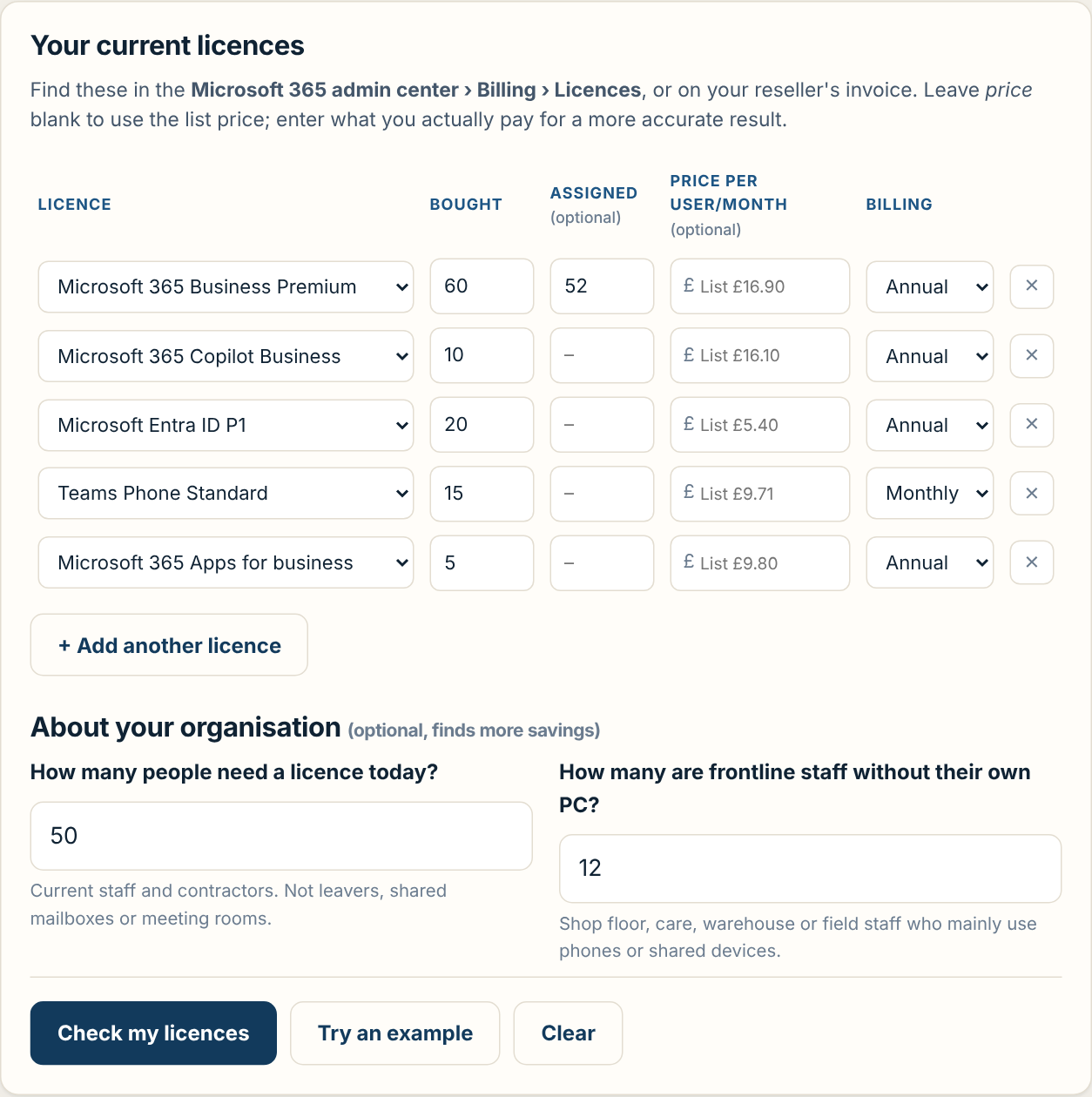
- Open the Microsoft 365 admin center › Billing › Licences (or your reseller's invoice) to see what you have.
- For each licence, choose it from the list and enter the number bought. Click + Add another licence for more rows, or × to remove one.
- Optionally enter the number assigned (in use). This finds unused seats.
- Optionally enter the price you pay per user per month. If you leave it blank, the list price is used and shown in grey. Some standalone services have no list price on the site, so enter what you pay for those.
- Choose Annual or Monthly billing.
- Optionally answer how many people need a licence and how many are frontline staff. These find leavers' licences and staff who could use cheaper frontline plans.
- Click Check my licences. Not sure where to start? Try an example fills in a sample organisation.
Reading the results
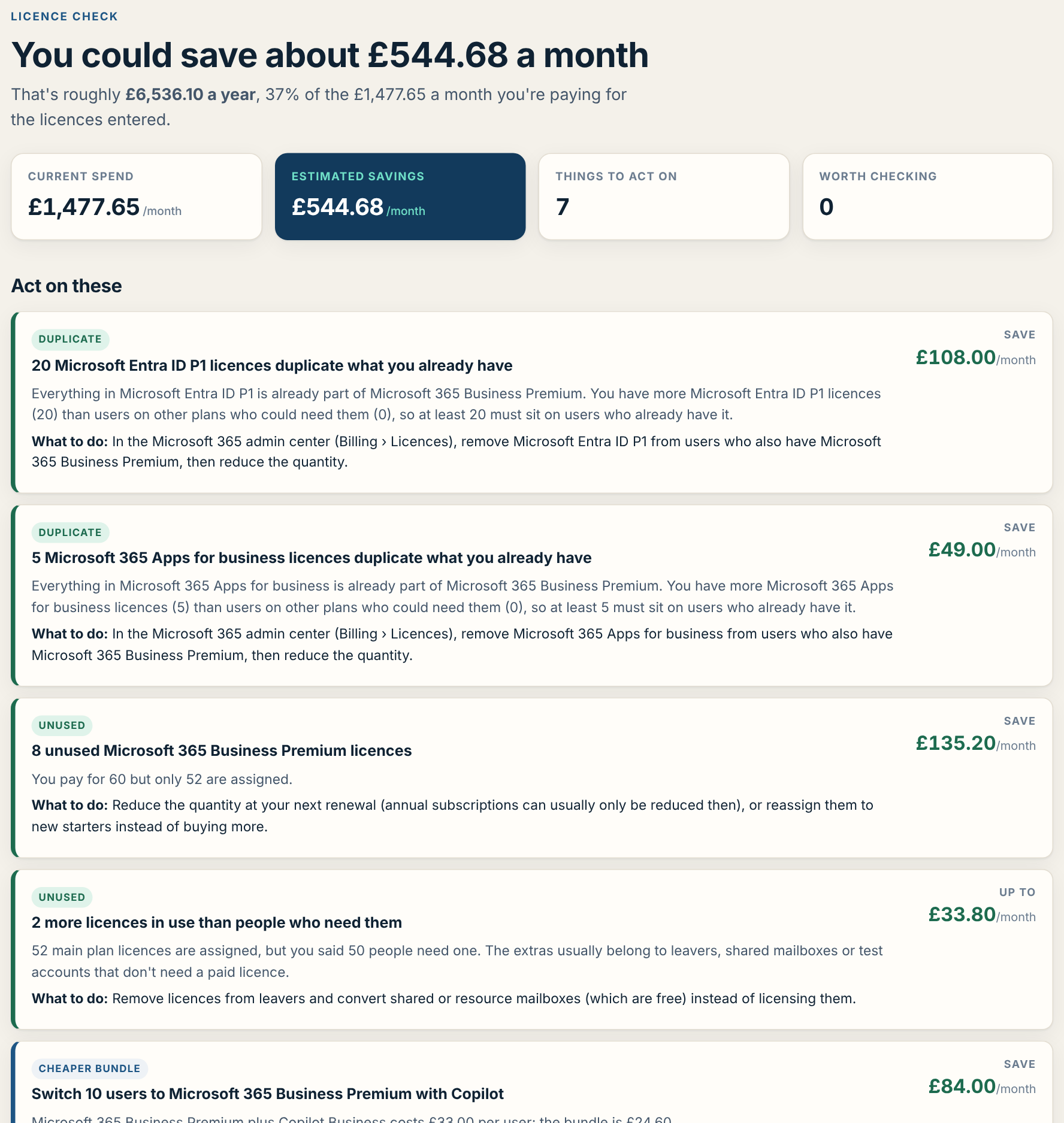
The top shows your current spend on the licences entered and the estimated savings per month. Below that, each finding has a coloured tag, an explanation, what to do, and the saving:
| Tag | What it means |
|---|---|
| Duplicate | An add-on that's already included in a plan you hold. For example, Entra ID P1 on top of Business Premium. It's only marked certain when there aren't enough users on other plans to need it. |
| Unused | Licences bought but not assigned, or more licences in use than people who need them (often leavers). |
| Cheaper bundle | A combination that costs more than a single plan that includes it all. For example, E3 plus several add-ons versus E5, or Business Premium plus Copilot Business versus Business Premium with Copilot. |
| Right-size | Frontline staff on full office plans who might qualify for F3. |
| Billing | Monthly subscriptions, which cost about 20% more than annual ones. |
| Rule issue | Something that breaks Microsoft's rules, such as a Business plan over 300 seats, or an add-on without the plan it needs. |
| Worth checking | Possible duplicates that depend on who each licence is assigned to. These aren't counted in the savings total. |
Savings on the same licence aren't counted twice. They are estimates. Annual subscriptions can usually only be reduced at renewal, and your reseller's prices may differ from list prices.
Share this check gives a link that reopens the same licence check, and Print or save as PDF keeps a copy. Like the rest of the site, your licence details are checked in your browser and never sent anywhere.
7 Compare plans
Click Compare plans in the top bar to see what each main plan includes, side by side.
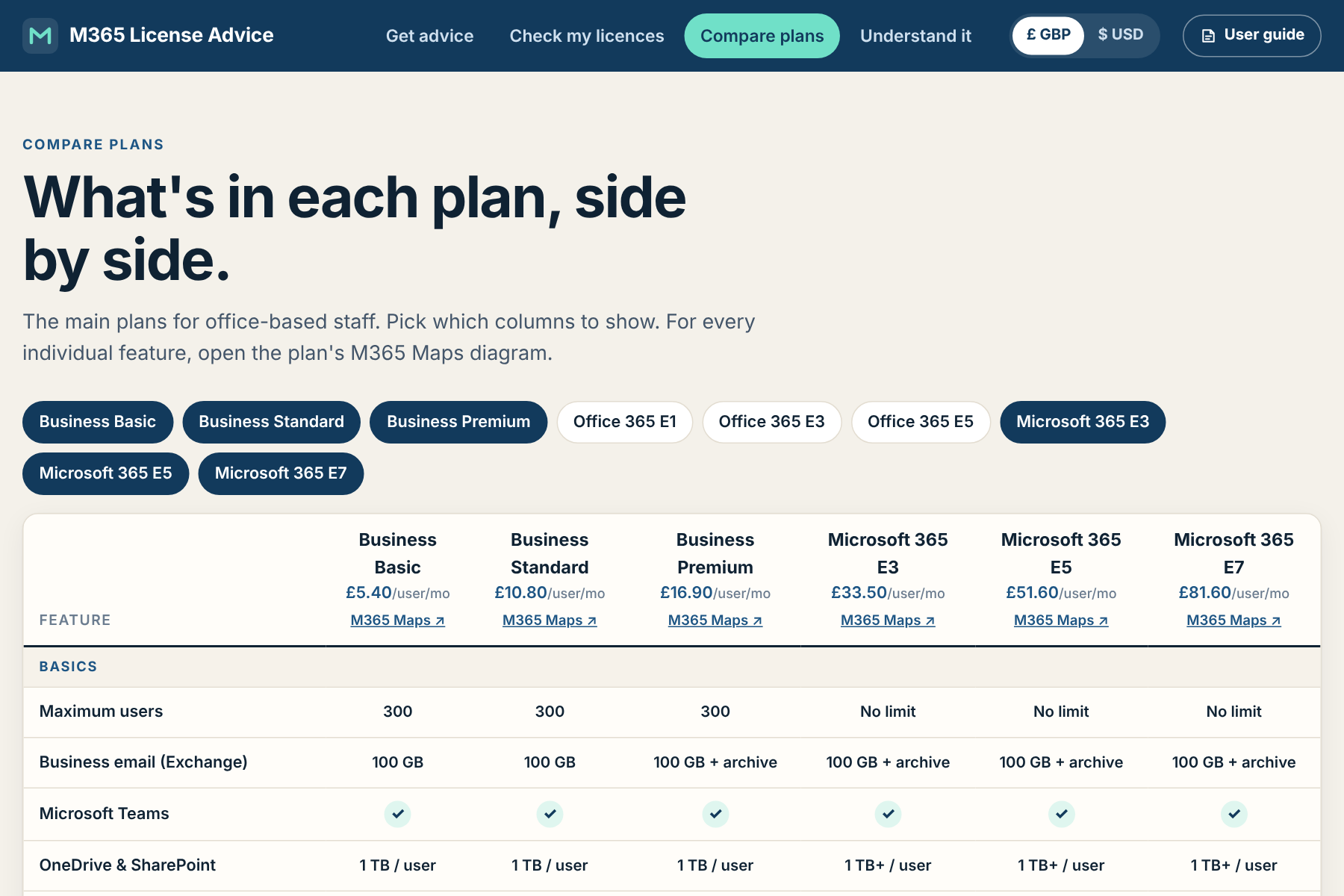
- Use the plan buttons above the table to choose which columns to show. Dark buttons are shown; click a button to add or remove that plan.
- Read down a column to see everything in a plan, or across a row to see which plans include a feature.
- The column headings show each plan's price in your chosen currency and an M365 Maps ↗ link to its full diagram.
| Symbol | Meaning |
|---|---|
| ✓ | Included in the plan |
| - | Not included |
| Text (e.g. "Plan 1", "100 GB") | Included, at the level shown |
| Add-on | Available, but bought separately |
Features are grouped into Basics, Identity & devices, Security, Compliance and Extras. On a phone, swipe the table sideways to see more columns.
Plans for other kinds of staff and organisations
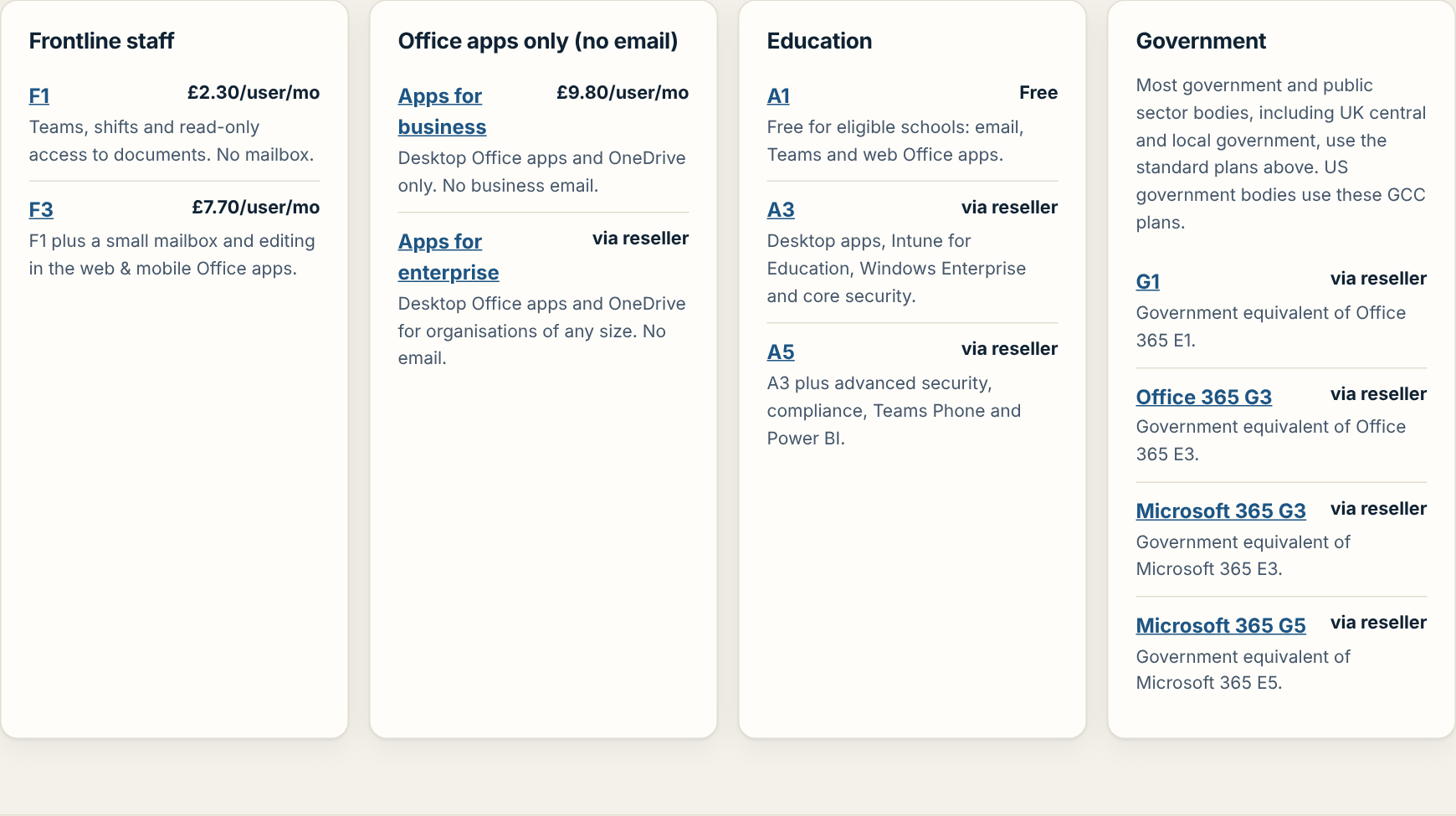
Below the table are summary cards for frontline (F1, F3), Office apps only, education (A1, A3, A5) and government (US GCC) plans. Click a plan name to open its M365 Maps diagram.
8 Understand it (glossary)
Click Understand it for plain-English explanations of the terms you'll see in plan comparisons and Microsoft documents.
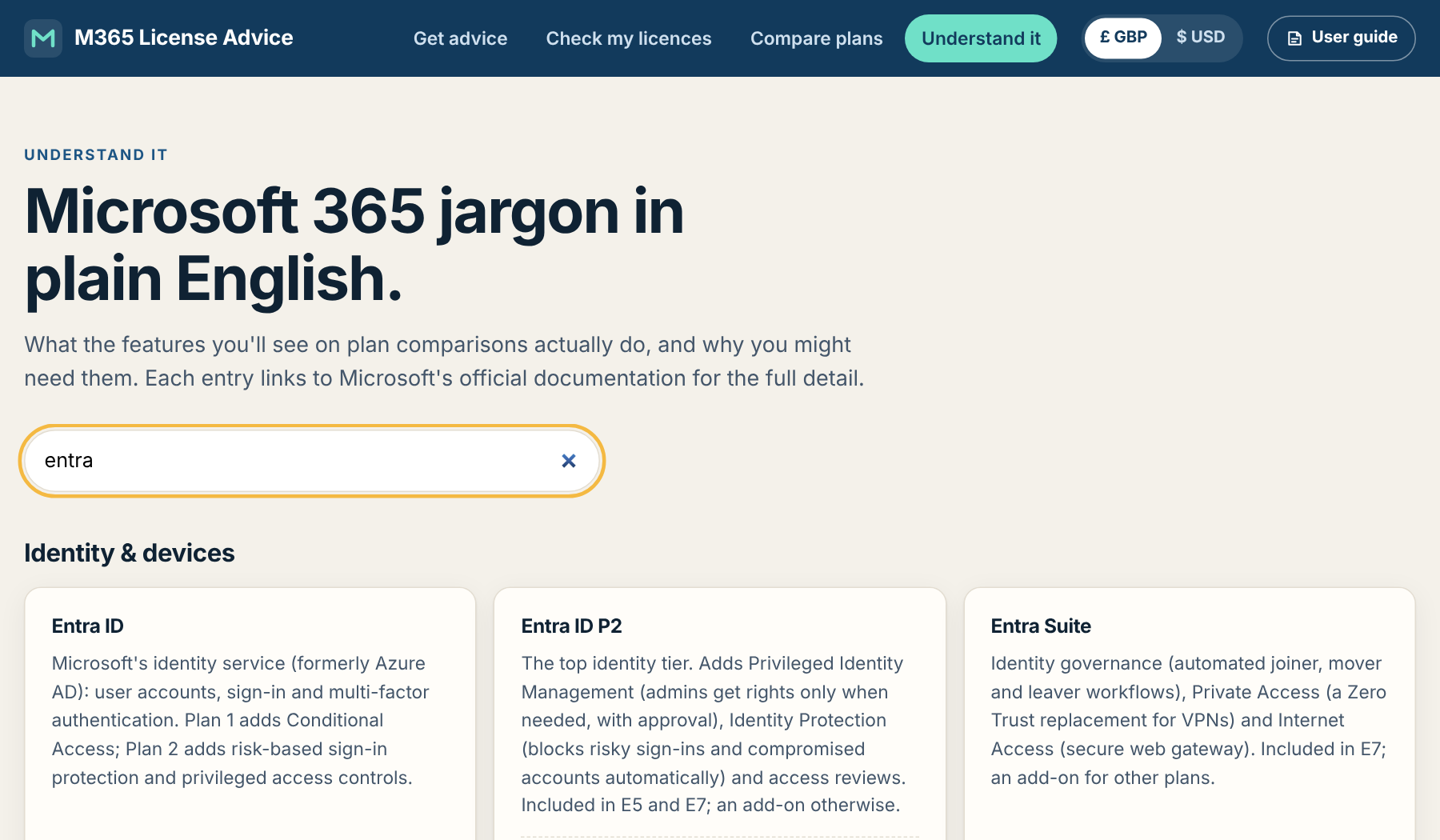
- Type in the search box to filter instantly, for example "Intune", "DLP" or "Copilot".
- Terms are grouped into Everyday tools, AI, Identity & devices, Security, Compliance, Extras and Plan types.
- Under each explanation, Microsoft documentation links open the official Microsoft Learn pages for that component in a new tab: overviews, plan-by-plan feature tables and licensing details.
- If a term isn't listed, use the link to search the M365 Maps feature matrix.
9 Using M365 Maps
M365 Maps is a free, independent collection of Microsoft 365 licensing diagrams by Aaron Dinnage. Each licence is drawn as a visual map of every service and feature it includes. This site links to it so you can go beyond the summary.
- Plan diagram: shows every feature in one licence. Zoom with the mouse wheel or by pinching; click a feature tile to open Microsoft's documentation for it.
- Compare: two diagrams side by side with a sliding divider. When you click "Compare with…" on your results, choose your recommended plan and the alternative on the M365 Maps page.
- Feature matrix: a searchable table of features across many licences. Tick the plans you want and search for a feature.
M365 Maps is unofficial and maintained by its author in his own time. Links open in a new tab.
10 How recommendations are made
The advisor follows clear rules so you can see why it chose a plan. First it works out your office-based users (total minus frontline). Then it chooses a plan family:
| Situation | Plan family |
|---|---|
| 300 or fewer office-based users | Business plans (each Business plan is capped at 300 users) |
| More than 300 office-based users | Enterprise plans (no user cap) |
| Education | Education plans (A1, A3, A5) |
| No Microsoft email wanted | Apps for business (≤300) or Apps for enterprise |
| Frontline staff | F1 or F3, alongside the main plan |
Business plans (up to 300 office-based users)
| If you said… | Recommendation | Alternative |
|---|---|---|
| Advanced security or heavily regulated | Business Premium + Defender and/or Purview Suite add-ons | Microsoft 365 E5 |
| Manage devices (or not sure), strong security, or some compliance | Business Premium | Business Standard / Basic |
| Desktop apps, but none of the above | Business Standard | Business Premium |
| Web and mobile apps only | Business Basic | Business Standard |
Enterprise plans (over 300 office-based users)
| If you said… | Recommendation | Alternative |
|---|---|---|
| Advanced security, heavily regulated, or Teams Phone + Power BI | Microsoft 365 E5 | Microsoft 365 E3 |
| Manage devices (or not sure), or strong security | Microsoft 365 E3 | Microsoft 365 E5 |
| Desktop apps or some compliance | Office 365 E3 | Microsoft 365 E3 |
| Web apps only | Office 365 E1 | Office 365 E3 |
Advanced needs: E3 + add-ons vs E5 vs E7
When you tick advanced needs, the base plan from the tables above is only the starting point. The advisor works out which capabilities you need:
| Need | Add-on on Business Premium | Add-on on Microsoft 365 E3 | Included in |
|---|---|---|---|
| Entra ID P2 only | Entra ID P2 | Entra ID P2 | E5, E7 |
| E5 threat protection | Defender Suite for Business Premium (includes Entra ID P2) | Defender Suite | E5, E7 |
| E5 compliance | Purview Suite for Business Premium | Purview Suite | E5, E7 |
| Governance / VPN replacement | Entra Suite | Entra Suite | E7 |
| Teams Phone, Power BI Pro | Per-user add-ons | Per-user add-ons | E5, E7 |
| Copilot | "with Copilot" bundle | Microsoft 365 Copilot | E7 |
| AI agent governance | Agent 365 | Agent 365 | E7 |
It then prices each route and recommends the cheapest, preferring E5 or E7 when they're within about 5%. To keep recommendations consistent, the comparison is decided on Microsoft's US price list (where every item has a published price) and then shown in your currency.
Rules of thumb: one E5 area (for example only Defender) is usually cheapest as an add-on; two or more areas, or Teams Phone plus Power BI for most users, usually makes E5 cheaper. E7 wins when many users need Copilot and you also need the Entra Suite or Agent 365. Without those, E5 plus Copilot is normally cheaper than E7.
Education
Advanced security, heavy regulation or Teams Phone leads to A5. Device management, desktop apps, strong security or some compliance leads to A3. Otherwise you get the free A1.
Government
Government organisations get the same Business or Enterprise recommendation as above, because UK and most public sector bodies buy standard plans. A note names the US GCC equivalent (G1, G3 or G5) for US government bodies.
Copilot
- On Business Standard or Premium: the "with Copilot" bundle. Only the extra cost over the base plan is added to the estimate.
- On Business Basic: the Copilot Business add-on.
- On Enterprise plans: Microsoft 365 Copilot.
11 About the prices
- Prices are Microsoft's list prices after the 1 July 2026 price update, per user per month, on an annual commitment. The date they were last checked is shown in the footer of every page.
- UK prices exclude VAT. Reseller (CSP) prices, discounts, monthly billing and multi-year deals will differ.
- Nonprofit prices apply only once your organisation is approved by Microsoft's nonprofit programme. Business Basic is free for eligible nonprofits, up to 300 seats.
- Education and US government prices aren't published in the same way, so they show as "Ask reseller".
Plan and add-on list prices used
| Item | £ GBP (ex VAT) | $ USD |
|---|---|---|
| Business Basic / Standard / Premium | £5.40 / £10.80 / £16.90 | $7 / $14 / $22 |
| Office 365 E1 / E3 / E5 | £7.70 / £23.30 / £36.80 | $10 / $26 / $41 |
| Microsoft 365 E3 / E5 / E7 | £33.50 / £51.60 / £81.60 | $39 / $60 / $99 |
| Microsoft 365 F1 / F3 | £2.30 / £7.70 | $3 / $10 |
| Entra ID P2 | £7.70 | $10 |
| Defender Suite / Purview Suite / Entra Suite (enterprise) | £9.20 each | $12 each |
| Defender / Purview Suite for Business Premium | Ask reseller | $10 each |
| Microsoft 365 Copilot (enterprise) | £23.10 | $30 |
| Copilot Business / Standard with Copilot / Premium with Copilot | £16.10 / £18.10 / £24.60 | $21 / $23.50 / $32 |
| Teams Phone Standard / Power BI Pro | £8.09 / £10.80 | $10 / $14 |
| Agent 365 | Ask reseller | $15 |
Per user per month, annual commitment, with Teams. Cheaper "no Teams" prices are used when you answer No to Teams. Site owners update these in js/data.js.
12 Tips for a good result
- Count frontline staff carefully. They often make the biggest difference to cost.
- Mixing plans is allowed. You don't have to give everyone the same licence. For example, use Business Premium for office staff, Business Basic for light users and F1 for shift workers.
- Don't skimp on security to save a few pounds. Many IT partners treat Business Premium as the minimum for organisations under 300 users.
- Only buy paid Copilot for daily users. Start with a pilot group; everyone else still has Copilot Chat.
- Try "what if". Use Start again and change one answer (e.g. security level) to see how the recommendation and cost change.
- Share the reasons. Send the results link, copy the summary or save a PDF to take to your reseller or finance team.
13 FAQ and troubleshooting
- The recommendation seems too expensive. Can I go cheaper?
- Look at the "Also consider" card and the Why this plan section to see what you'd give up. Then click Start again and adjust the answers that drove the choice, usually device management or security level.
- We have more than 300 people. Can we still use Business plans?
- Each Business plan is limited to 300 seats. Larger organisations use Enterprise plans for most staff, but they can mix in Business plans for some users. Ask your reseller about the best mix.
- Why is a price showing "Ask reseller"?
- Microsoft doesn't publish a list price for that plan in the chosen currency (common for education, US government, some nonprofit plans and Apps for enterprise in £). Try the other currency for a rough guide, or ask your reseller.
- An M365 Maps link opens the wrong page or a "not found" page.
- M365 Maps sometimes renames diagrams. Use the M365 Maps home page or feature matrix to find the plan. Site owners can fix the link in
js/data.js. - Someone opened my shared link and saw different prices.
- The link reopens the same answers and currency, but uses the prices currently on the site. If prices have been updated since you shared it, the totals will reflect the new prices.
- Is it safe to share a results link?
- The link contains only your answers (user counts and choices), never names or contact details. It isn't sent to our server, but anyone with the link can see those answers.
- Switching £/$ doesn't change the prices.
- Your browser is probably still using an older copy of the site. Press Ctrl+F5 (Windows) or Cmd+Shift+R (Mac) to reload it fully. The site now tells browsers to check for updates every time, so this shouldn't happen after future updates.
- Why does E5 come out cheaper than E7 when I want Copilot?
- E7 includes E5, Copilot, the Entra Suite and Agent 365. If you don't need the Entra Suite or Agent 365, E5 plus Copilot usually costs less. Tick those needs in steps 4 and 6 if you have them, and E7 will be priced fairly against them.
- "Copy summary" doesn't work.
- Some browsers block copying on pages that aren't served over HTTPS, or in private windows. Use Print or save as PDF instead.
- The site remembers £ but I want $.
- Click $ USD at the top right. Your choice is stored only in your own browser.
- Does this cover Microsoft 365 Personal or Family?
- No. The site covers business, nonprofit, education and government plans only.
14 Privacy and disclaimer
- Your answers never leave your browser. There are no accounts, forms or tracking. The recommendation is worked out on your own device.
- A shared results link carries your answers after the
#in the address. Browsers don't send that part to the server, but anyone you give the link to can see it. - The only thing stored is your currency choice, saved in your browser's local storage.
- Links to M365 Maps and Microsoft open those sites, which have their own privacy policies.
- The site's host, Netlify, keeps standard technical logs (such as IP addresses) to run and secure the site.
The full Privacy page is linked at the bottom of every page. It also has a button to clear your saved currency setting.